Generic 9 column multi-section (JZGNMSWP)
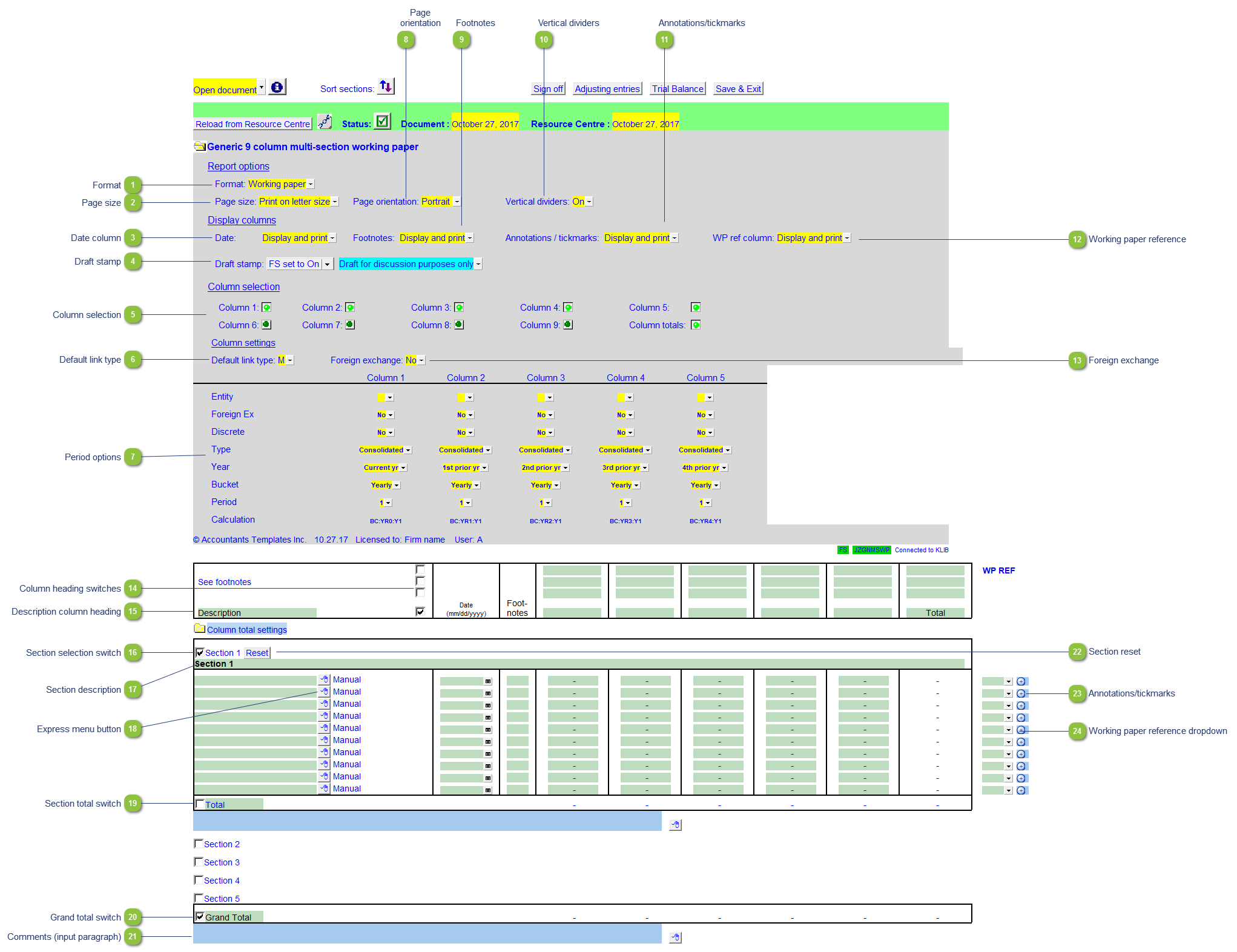
| Number | Name | Description |
|---|---|---|

|
Format |
The format option has 2 presets that allow the working paper to be presented to clients (Client version) or internal use (Working paper):
|

|
Page size |
Select to print the working paper on either letter or legal size page. |

|
Date column |
Use the popup menu to select to Display and Print, Hide or just Display the Dates.
|

|
Draft stamp |
The default option for the Draft stamp is set in the Diagnostics Report. If the default is not set to either globally on or off, you can set it manually for this working paper together with the draft wording. |

|
Column selection |
Choose which columns to display or hide |

|
Default link type |
Set the default link type for linked lines in the working paper. Link types can be changed on individual rows if required |

|
Period options |
Use the period options to set the settings for each column. Refer to 9 Column Statements with Budget Column for detailed information on each field. |

|
Page orientation |
Select to print the working paper in either portrait or landscape orientation. |

|
Footnotes |
Use the popup menu to select to Display and Print, Hide or just Display the Footnotes.
|

|
Vertical dividers |
Use the popup menu to toggle the divider lines on the statements on/off.. |

|
Annotations/tickmarks |
Use the popup menu to select to Display and Print, Hide or just Display the Annotations/tickmarks.
|

|
Working paper reference |
Use the popup menu to select to Display and Print, Hide or just Display the Working paper references.
|

|
Foreign exchange |
Select to use foreign exchange in the working paper. |

|
Column heading switches |
Select which column headings should print. |

|
Description column heading |
Set the description for the description column heading. |

|
Section selection switch |
Using the tickbox, select which section/s you would like to use in the working paper. |

|
Section description |
Set the name for the section. |

|
Express menu button |
Right-click on the express menu to insert more linked or manual lines, insert subtotals, sort and delete current lines where the options are available. |

|
Section total switch |
Using the tickbox, select to print or skip the section total. |

|
Grand total switch |
Using the tickbox, select to print or skip the working paper grand total |

|
Comments (input paragraph) |
You can edit existing input paragraphs or insert more paragraphs using the express menu. Refer to Input Paragraphs for more information on inserting paragraphs. |

|
Section reset |
Click to reset the specific section from the Resource Centre without having to reload the entire working paper. |

|
Annotations/tickmarks |
Double-click to enter a annotation or tickmark for the specific row. |

|
Working paper reference dropdown |
Select a working paper reference for the specific row. |