Balance Sheet
* the above screenshot was taken with the Threshold amount set to 1 for illustration purposes.
| Number | Name | Description |
|---|---|---|

|
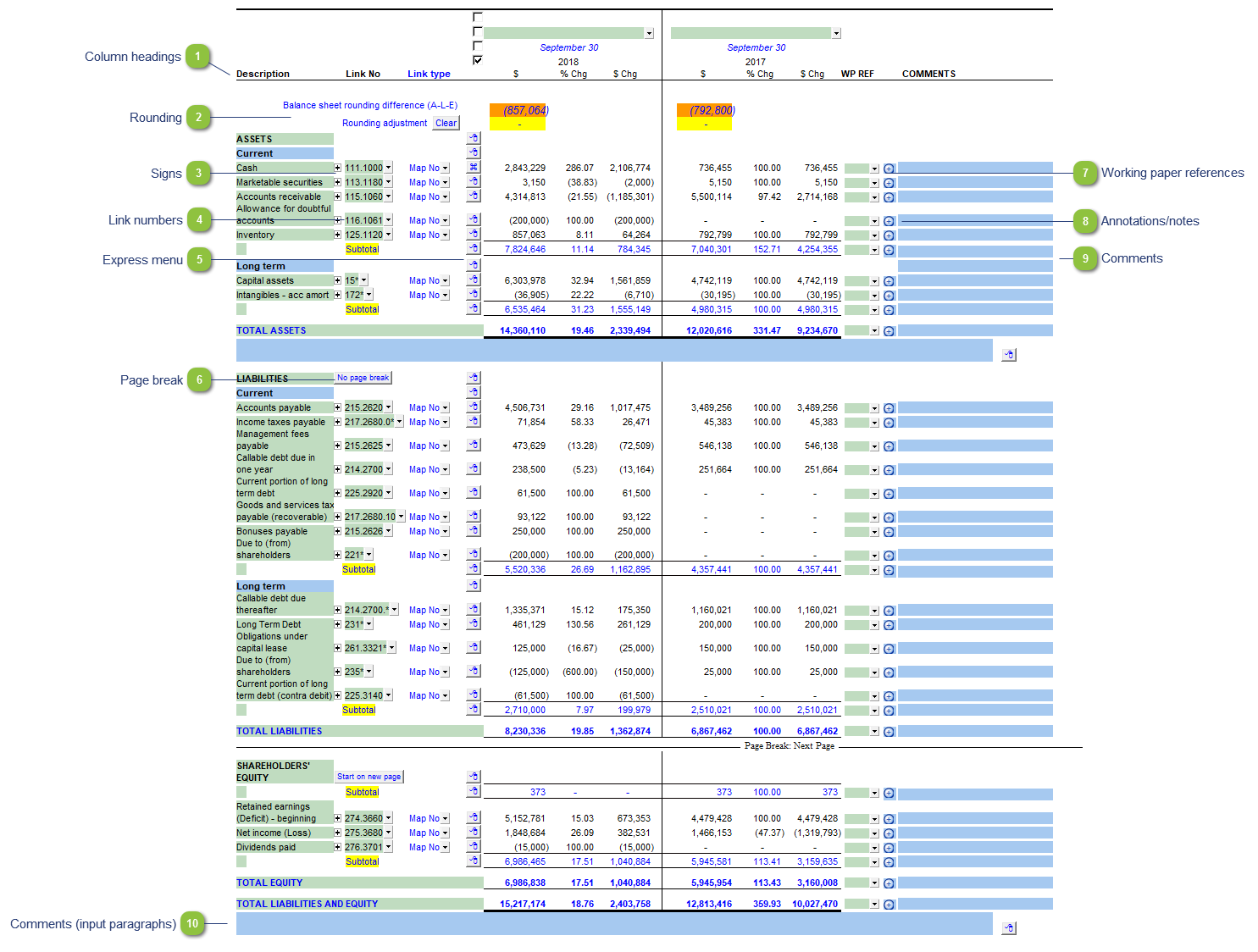
Column headings |
Use the checkboxes to the left of each heading line to skip or print the headings. Select the heading option you'd like to print using the popup menus. The following headings are available:
|

|
Rounding |
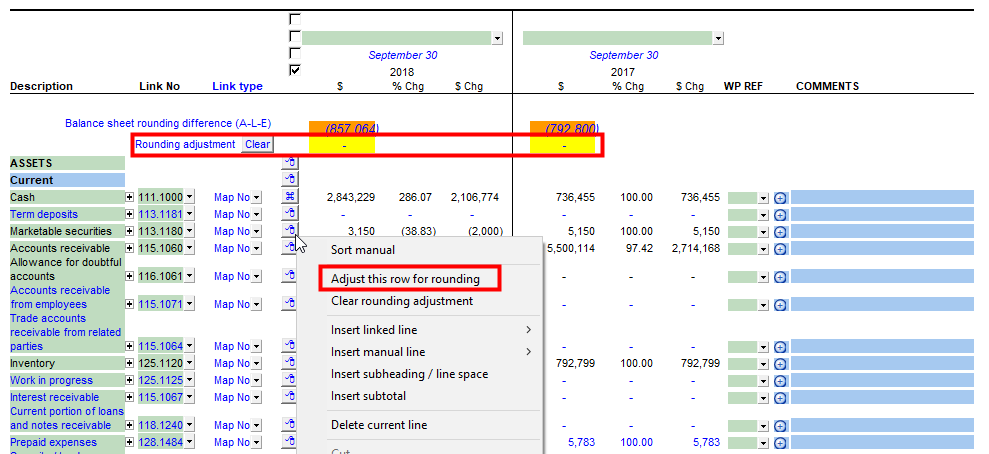
The Balance Sheet section of the working paper has support for rounding. The rounding difference is automatically calculated and shows at the top of the Balance Sheet in orange cells. To designate a rounding line, right-click on the express menu of the line item to be used for rounding and select Adjust this row for rounding. The express menu will change to
To undo the rounding, click on the Clear button. |

|
Signs |
This allows you to change the sign of the linked rows. Changing the sign will affect the calculation. |

|
Link numbers |
The link number indicates which linked number (i.e. map number) the row is linked to. Use the popup menu to select a link number. This can be a map, account or group number depending on the linkage options selected in the template options. |

|
Express menu |
Right-click on the express menu to insert more linked or manual lines, insert subtotals, sort and delete current lines where the options are available. |

|
Page break |
Click on the button to insert or remove the page break above the note. |

|
Working paper references |
Use the popup menu to select a working paper from the Document Manager to reference to. Double-click on the reference to open the reference working paper. You can change the display settings in the template options section of the working papers. |

|
Annotations/notes |
Double-click on the annotations icon to add an annotation or note to the line item. You can change the display settings in the template options section of the working papers. |

|
Comments |
Manually enter comments into the input paragraph cell. You can change the display settings in the template options section of the working papers. |

|
Comments (input paragraphs) |
You can edit existing input paragraphs or insert more paragraphs using the express menu. Refer to Input Paragraphs for more information on inserting paragraphs. |
 to indicate the designated rounding line. The orange cells should disappear when the statement is rounded properly.