File Conversion
The File Conversion dialog appears when opening a file from a previous version of Time. Be aware of the following changes to your file when converting to Time 2015:
You must create a backup copy of your Time file prior to conversion. Converted files cannot be opened in a lower version of Time.
Specify a directory where the backup file is to be created. When you click OK, a backup of your client file is generated in the specified directory prior to conversion.
Project Conversion from Time 2009 to Time 2015
Projects are automatically converted between versions during file conversion. Project conversion to Time 2015 involves updating project structures to account for new features and organization for project management.
Project types have no default properties in Time 2015 and are only a type listing. Project defaults can now be set in project templates. During conversion, existing project defaults are defined under project templates. Each client project is now based on a project template and inherits all accompanying project defaults set in the project template. You can customize client projects to override project defaults from the project template.
In Time 2015, the project template number uses the existing project codes from Time 2009 to assign template and client project identifiers. The project template number includes the year only if you associated project codes to years in Time 2009. If you did not, only the project code is used as the project template number. For example:
|
Time 2015 fields |
Converted without year |
Converted with year |
|
Project Code: |
AUDIT |
AUD2011 |
|
Year: |
||
|
Project Template No.: |
AUDIT |
AUD2011 |
For client project numbering you now have the option to specify client project numbers in two ways (for more information about client project numbering see the section on 'client project numbering default' here.). During conversion, Time sets the default numbering scheme for client projects as a project number mask. The initial default for your project number mask is composed of the project template number and client number, separated by a hyphen. For example:
|
Converted without year |
Converted with year |
|
|
Project Template No.: |
AUDIT |
AUD2011 |
|
Client No.: |
10023 |
10023 |
|
Client Project No.: |
Audit-10023 |
Aud2011-10023 |
The default numbering scheme can be accessed from the Company Profile. After conversion, the defaults are set as follows:
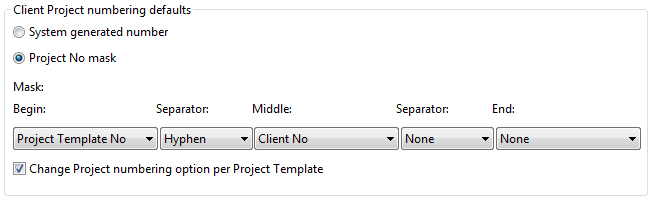
You can change these defaults at any time by going to File | Company Profile | Project tab. For more information, see "Project tab" of the Company Profile.
Contact Conversion for Time 2015
The contacts area in Time 2015 has changed. After file conversion you must manually convert contacts to use them in Time 2015. For more information, see "Contacts Structure in Time".
Note: This type of conversion is only necessary if you are converting files from a version older than Time 2013.
Client Employee Conversion for Time 2015
Client employee records are automatically converted when you convert your file.
Note: This type of conversion is only necessary if you are converting files from a version older than Time 2013.
Client employee conversion removes duplicate client employee records. The following table shows how duplicates are resolved (that is, when two or more client employee records have identical first and last names):
|
Identical |
A single record is created for these client employees. |
Yes, if any other field between records is not identical, a warning is added to the log. No, otherwise. |
|
Unique email for both records |
A unique record is created for each client employee. |
Yes, a warning is added to the log to indicate multiple records exist with the same first and last names. |
|
One record without an email and a second record with an email |
A single record is created for these client employees. |
Yes, if any other field between records is not identical, a warning is added to the log. No, otherwise. |
Comments and suggestions about this article and our software are greatly appreciated. As a user of our products, you are in a unique position to provide ideas that have an impact on future releases of this and other products.
Before contacting Technical Support, please consult the online Help and any other documentation included with this package as your first source to solve the problem.
If you require additional assistance, you can contact CaseWare® Technical Support by contacting your nearest CaseWare distributor.
When you contact CaseWare® Technical Support, you should be at your computer and have your documentation at hand. Be prepared to provide the following information:
- Your Client Number.
- The product version number, found by clicking the Help menu and selecting About.
- The type of computer hardware you are using.
- The software version number of MS-Windows.
- The exact wording of any messages that appear on your screen.
- A description of what happened and what you were doing when the problem occurred.
- A description of how you tried to solve the problem.
CaseWare Support
NORTH AMERICA
Email: support@caseware.com
Phone: 416-867-9504
GLOBAL

Copyright ©2017 CaseWare International Inc
| Visit us: www.caseware.com
Follow us


